 Pinumo
Start with one task and a clear finish.
Write down what the reader needs to accomplish. For this example, the task is to find one order, check its status and export its record. The finish is a CSV file containing the correct order reference.
Capture the screens that help someone choose an action or confirm a result. Include the menu that opens a section, the field they need to use, and the final state. A repeated screen with no new information rarely needs another image.
Keep the same window size as you capture the sequence. Use the browser extension for a task inside a webpage. Use Windows when the instructions move between a browser, desktop software and a saved file.
Put the action next to the image.
Import or collect the images in Pinumo, then arrange them in the order the reader will use. Rename the images with short step names so you can find the right one again.
Use a box or arrow to point to the target. Add a numbered marker and a short instruction such as “Choose Orders in the left sidebar.” Name the action and its target; a circle on its own may leave the reader guessing.
Crop unrelated parts of the screen while keeping enough context to locate the control. Cover private details with an opaque block, then inspect the exported image before sharing it.
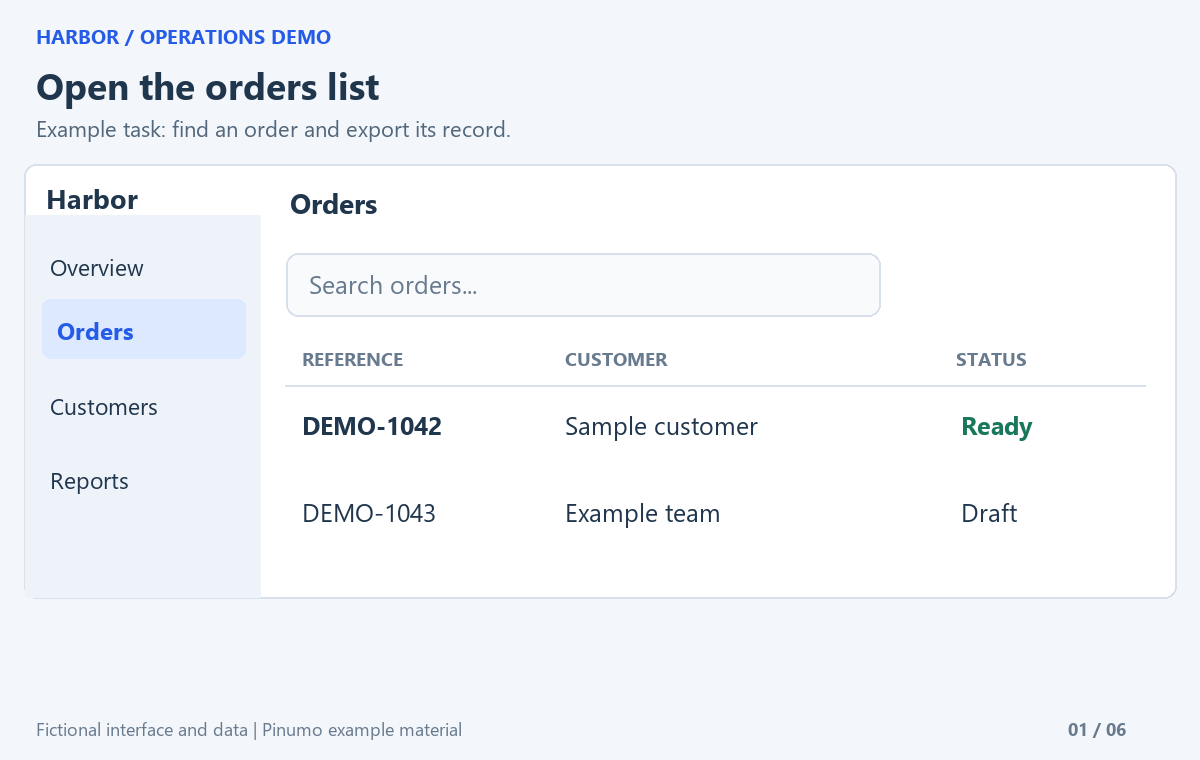
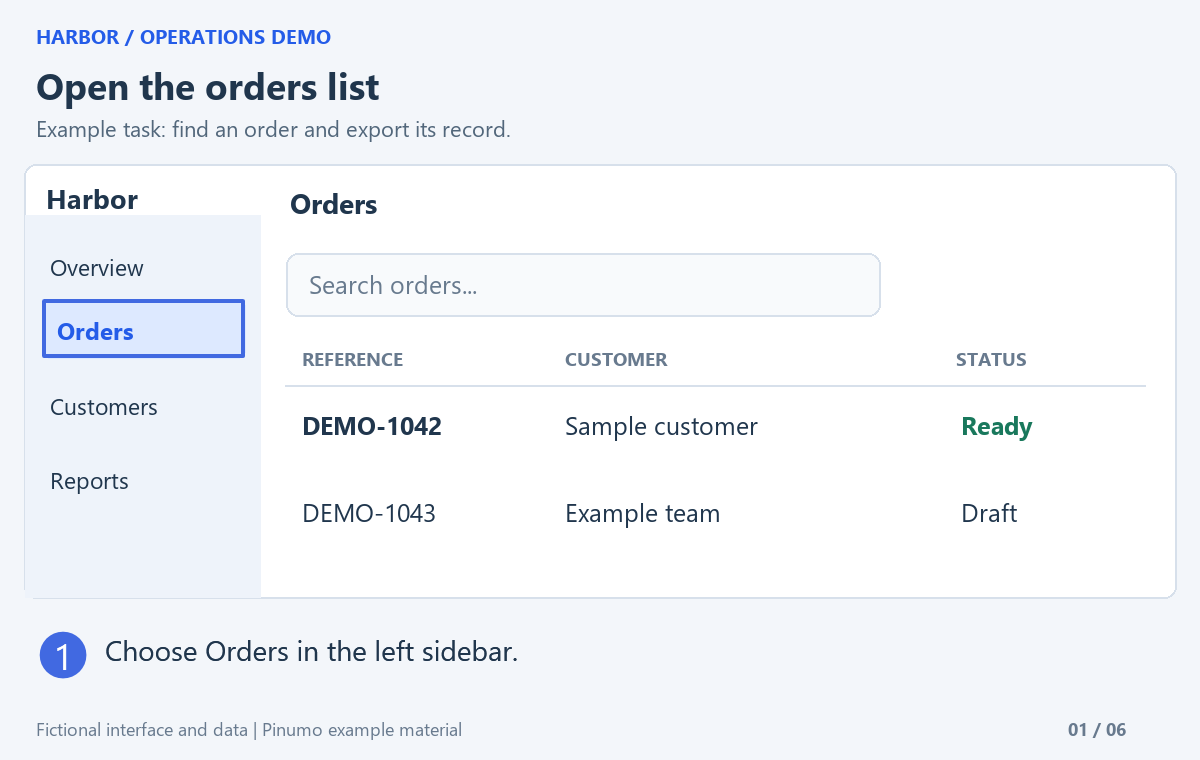
The same input, with a target box, a numbered marker and an instruction added by Pinumo.
A six-step order lookup, from start to finish.
This fictional Harbor interface lets you practise the workflow with sample data. The numbered notes and boxes below were rendered with Pinumo’s annotation tools.
1. Open the orders list
Choose Orders in the left sidebar.
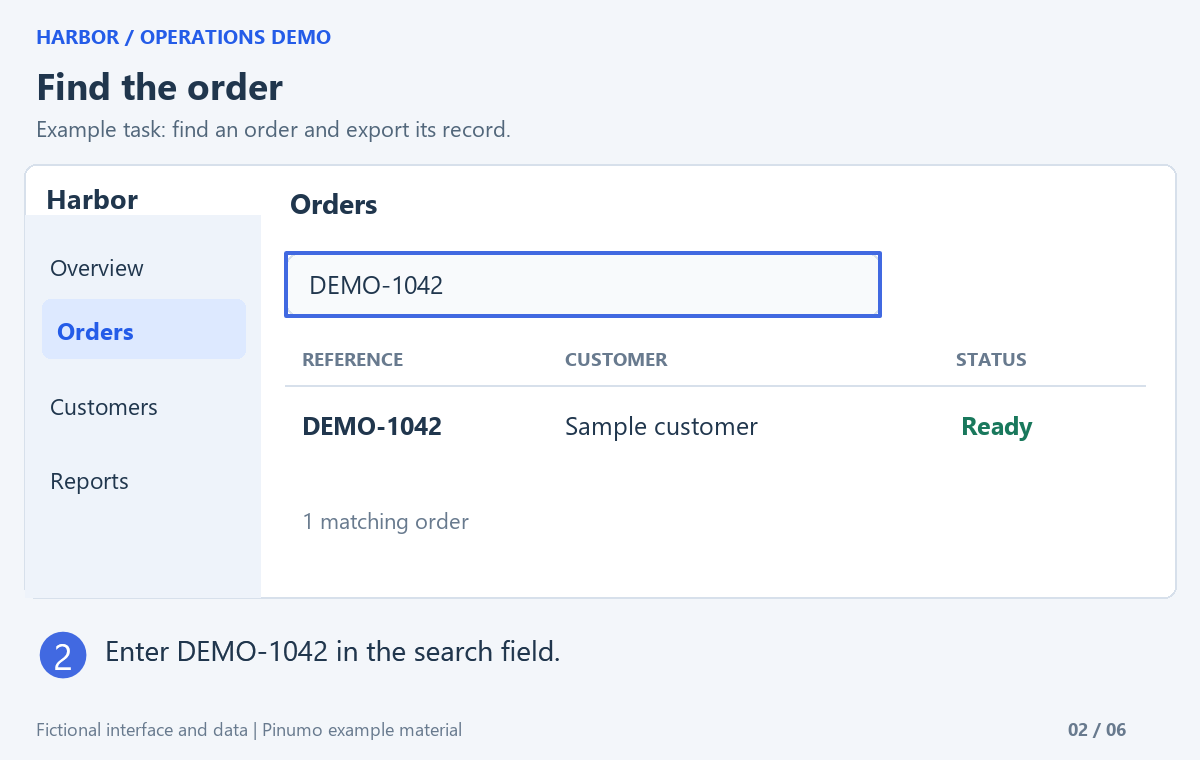
2. Find the order
Enter DEMO-1042 in the search field.
3. Open the matching record
Select the row for DEMO-1042.
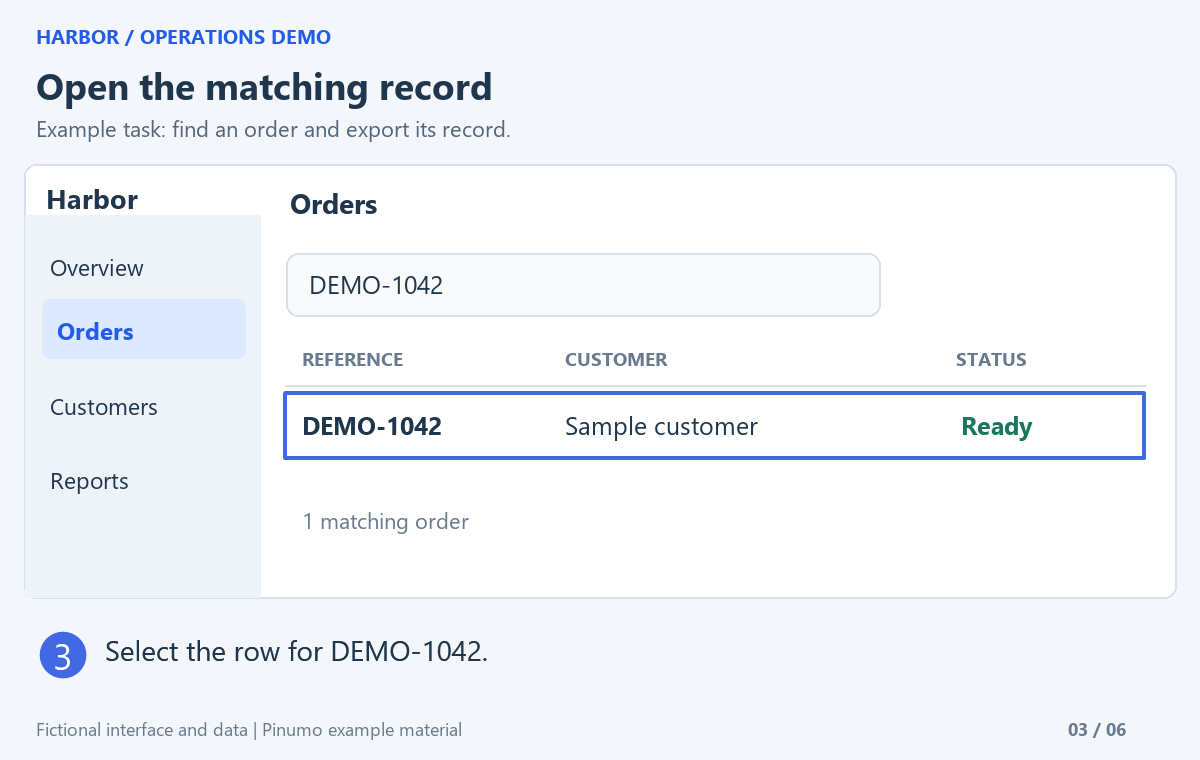
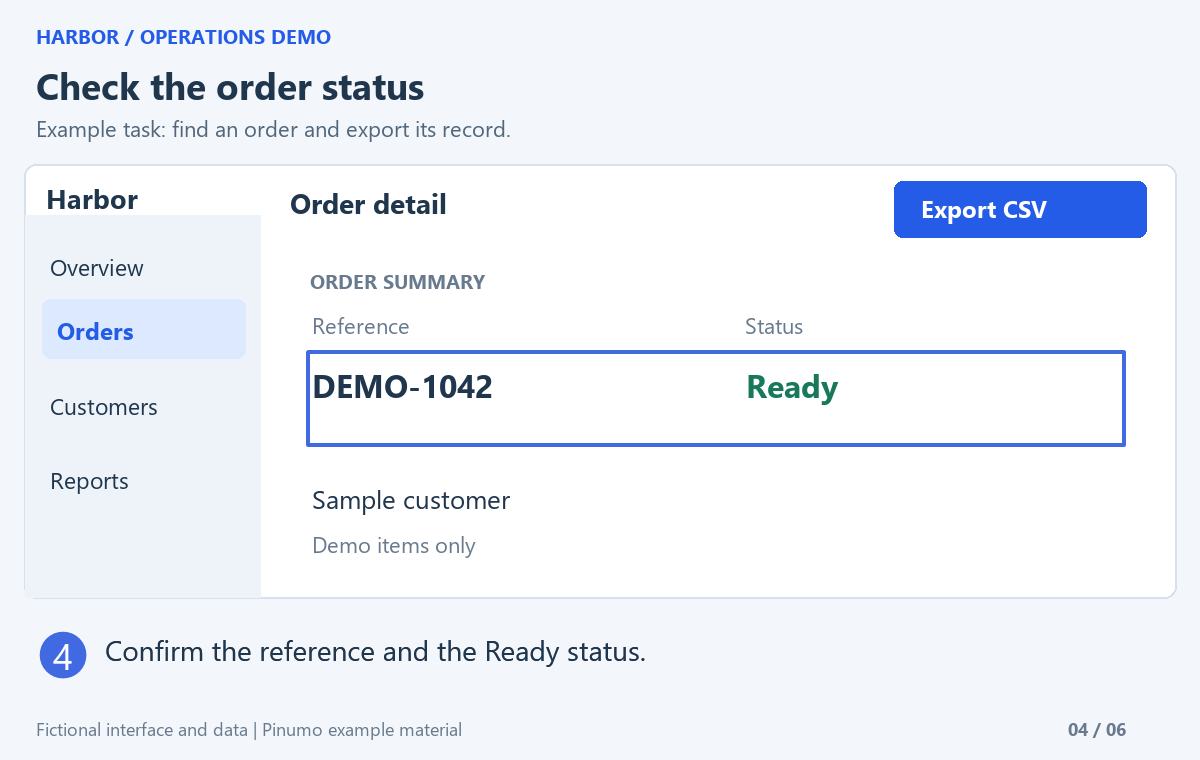
4. Check the order status
Confirm the reference and the Ready status.
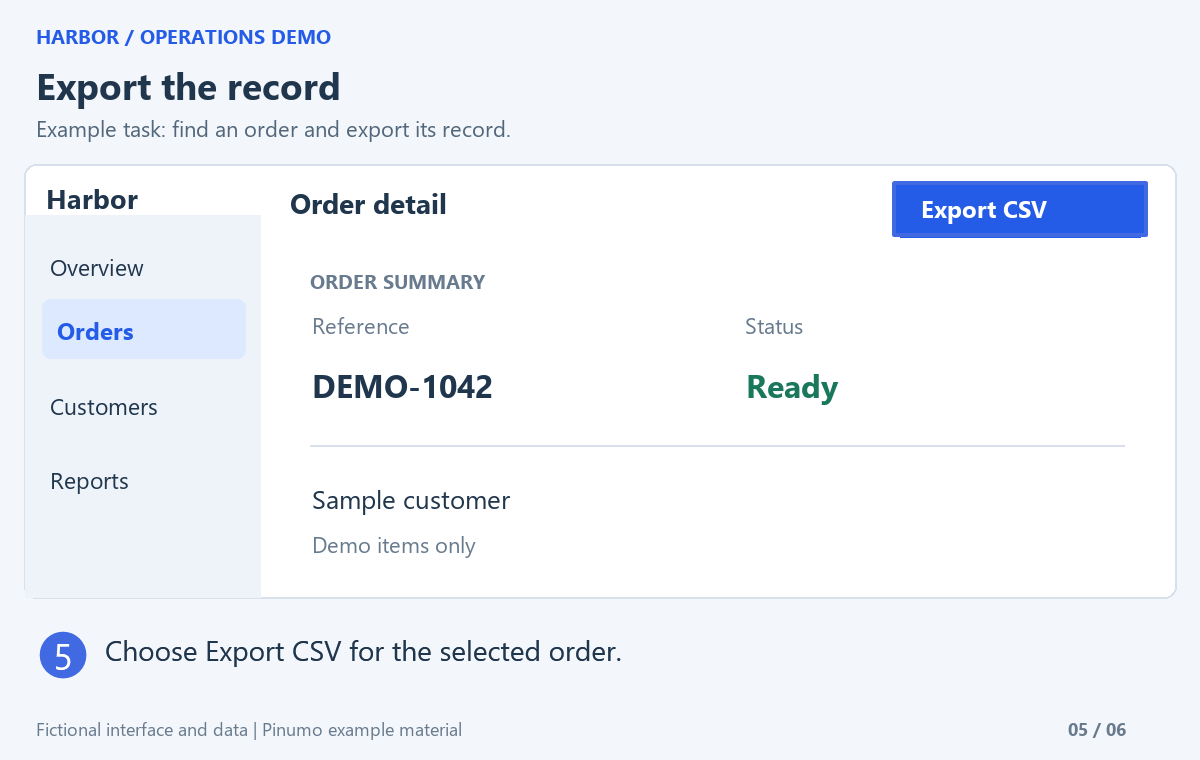
5. Export the record
Choose Export CSV for the selected order.
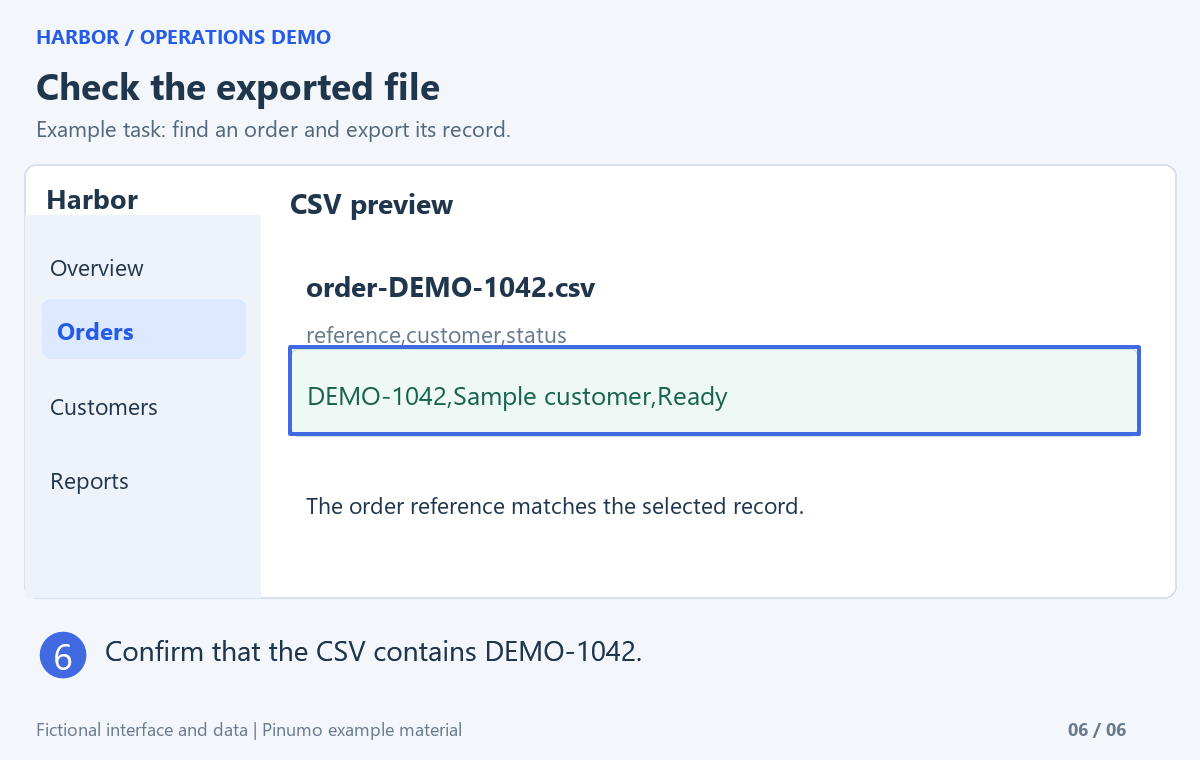
6. Check the exported file
Confirm that the CSV contains DEMO-1042.
Choose how the steps sit on the page.
Both PDFs below contain the same six annotated images in the same order. Open either file to inspect the text at a comfortable zoom.
Standard PDF · Free
One image per portrait A4 page. These six images produce six pages. Capture, arrange, annotate and make this standard export with the free features.
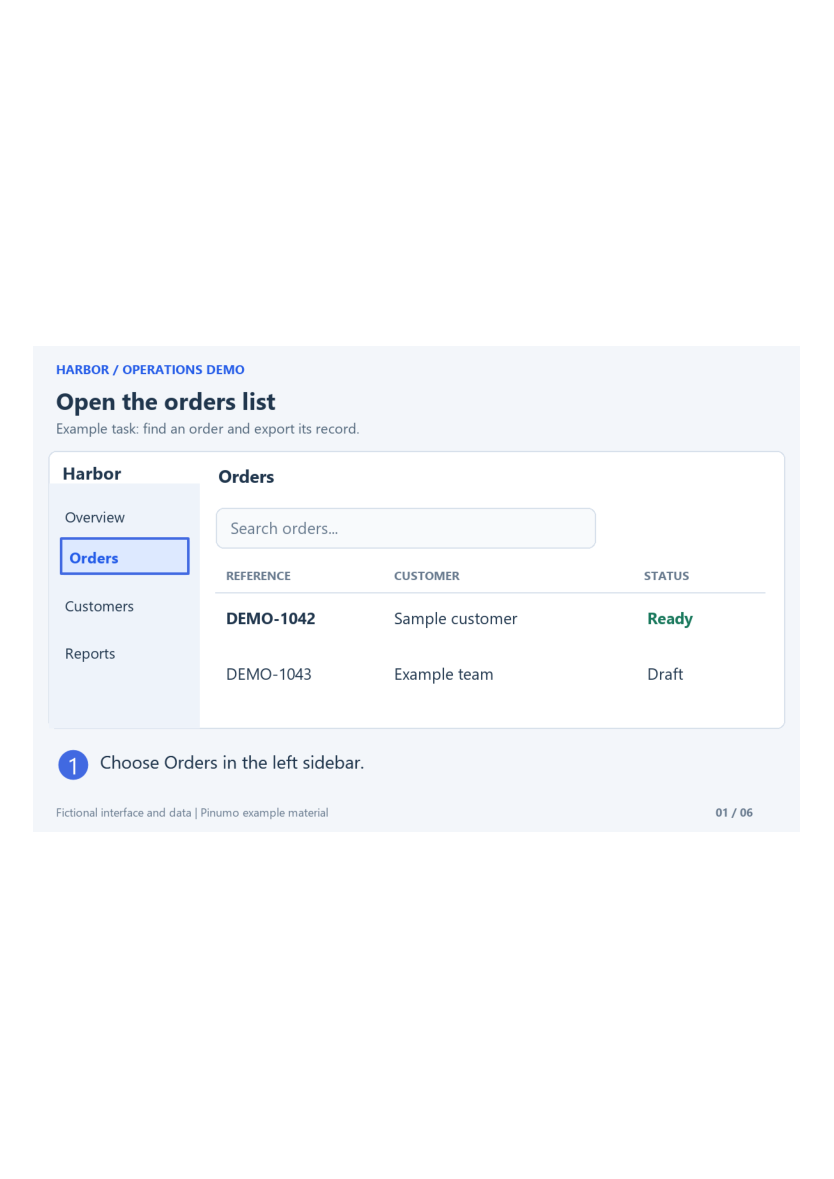 Open the free-layout PDF · 6 pages ↗
Advanced PDF · Pro
Two images per portrait A4 page. The same six images fit into three pages. Pro adds layout, orientation, quality controls and page preview.
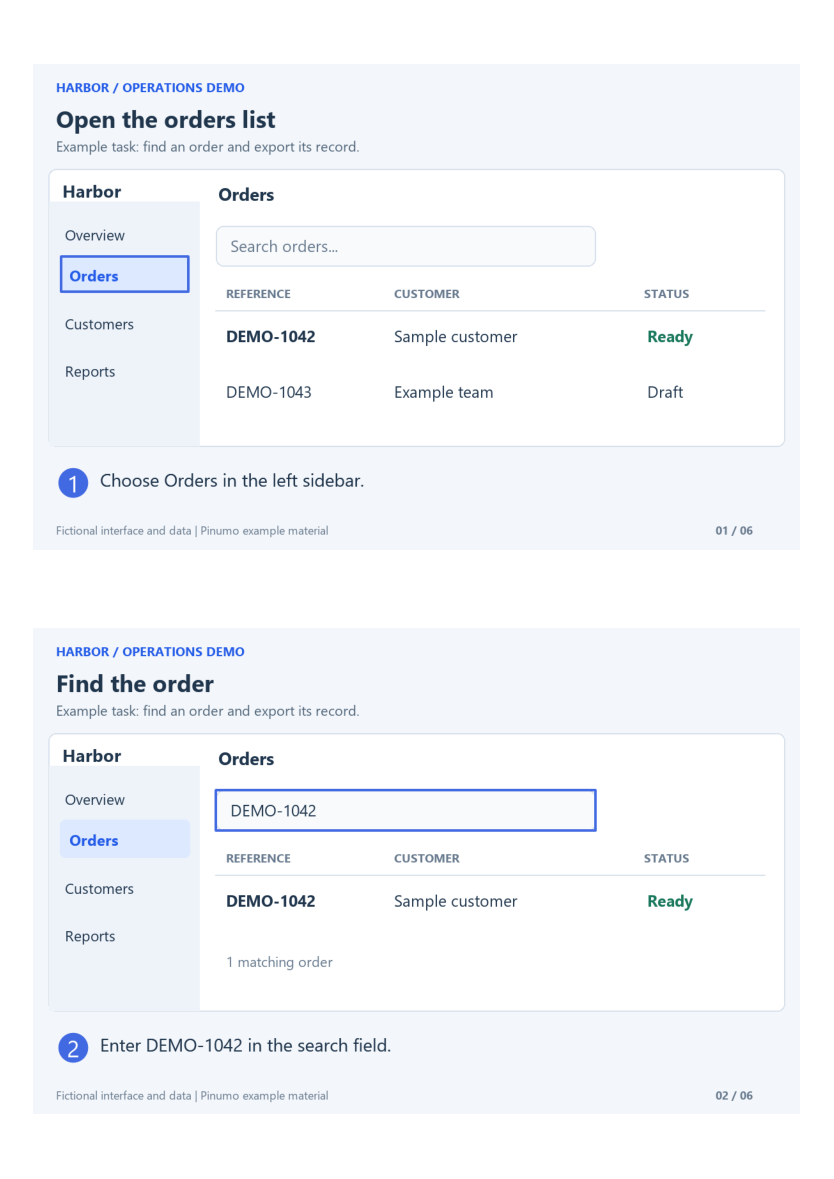 Open the Pro-layout PDF · 3 pages ↗
Use fewer images per page when the interface text is dense. Review the smallest labels in the finished PDF before choosing a compact layout. A smaller page count alone does not make a better guide.
Sample source
These PDFs were exported with Pinumo for Windows from fictional demo images and data.
Read it as someone seeing the task for the first time.
- Does the first instruction say where to start?
- Are the steps in order, with one clear action in each?
- Can you read the important labels at the intended page size?
- Does the last step show what a successful result looks like?
- Have private details been removed from the exported file?
Keep short written instructions beside the images. They explain the action when a picture is hard to read and make the guide easier to update later.
Questions about screenshot instructions
Can I make the guide with free Pinumo features?
Yes. Capture, organization, annotation and standard PDF export are free. The six-page example uses that path. The three-page example shows the Pro two-images-per-page layout.
Does Pinumo automatically write the instructions?
You choose the screenshots and add the wording. Use a short verb and a clear target for each step, then check the final guide from beginning to end.
Can I use the browser extension?
The browser extension supports the screenshot, annotation and PDF workflow within your browser. Choose Windows for tasks involving other desktop applications.
Can readers search the words inside these PDF samples?
These are image-based PDFs. Pinumo’s OCR and Pro content search help you work with screenshots inside Pinumo; they do not add a searchable text layer to these sample PDFs.